
Getting API Keys
Backchannel’s transcription and analysis agents run on cloud models from Google (Gemini) and OpenAI. This page walks through creating a key for each provider with as few clicks as possible, then connecting it to Backchannel.
You only need one key to start:
| Provider | Needed for | Cost to start |
|---|---|---|
| Google (Gemini) | Batch transcription, live interim transcription, and the default analysis agents – start here, unless you want the fully local no-key setup described below | Free tier, no credit card |
| OpenAI | Optional; only for agents you point at OpenAI models (for example the audio gateway on OpenAI Realtime) | Prepaid credit, minimum $5 |
Prefer not to use a cloud provider at all? You do not have to. Under Admin -> Connections -> Self-Hosted Models, add any OpenAI-compatible server you run – LM Studio, Ollama, vLLM, or LiteLLM, on your workstation, home lab, or a GPU box on the corporate network. Click Connect & list models and Backchannel reads the model list straight off the server; each model you keep then appears by name in every model picker. Paired with a local ONNX transcription model, that combination runs end to end on your own hardware and needs no key from anyone. See Self-hosted endpoints.
Endpoints on your own machine or network also satisfy the
Privacy First switch, so you
can leave it on and keep the analysis agents running. Live interim captions
default to a cloud streaming gateway, but the experimental on-device
local-parakeet-live captioner can carry them under Privacy First too.
Google Gemini key (about 2 minutes, free)
Section titled “Google Gemini key (about 2 minutes, free)”-
Open https://aistudio.google.com/apikey and sign in with any Google account.
-
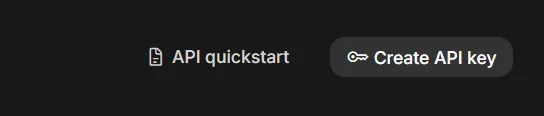
Click Create API key in the top-right corner:
-
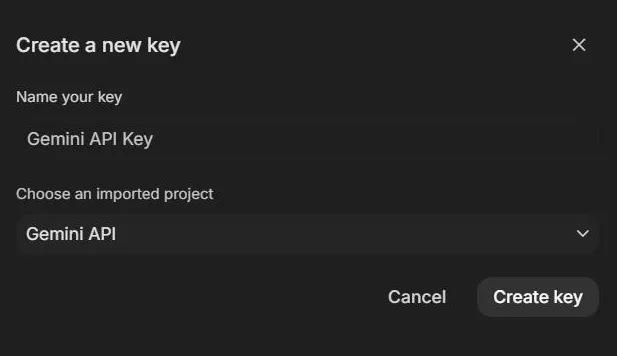
In the dialog, keep the suggested name and project (AI Studio creates a Google Cloud project for you if you have none) and click Create key:
-
Copy the key (it starts with
AIza).
That is the whole process. The free tier needs no credit card and is enough to evaluate Backchannel. You can return to the same page any time to re-copy or revoke the key.
One caveat: managed Google Workspace accounts sometimes have AI Studio disabled by an administrator. If the page refuses to load or the button is missing, use a personal Google account or ask your admin to enable it.
OpenAI key (optional)
Section titled “OpenAI key (optional)”- Open https://platform.openai.com/api-keys and sign in, or create an account – this is the OpenAI developer platform, which is separate from ChatGPT.
- Click Create new secret key, give it a name such as
backchannel, and copy it immediately – OpenAI shows the full key only once. It starts withsk-. - API usage is prepaid and separate from any ChatGPT subscription. If requests fail with a quota error, add credit (minimum $5) under https://platform.openai.com/settings/organization/billing.
Connect the key to Backchannel
Section titled “Connect the key to Backchannel”Keys are managed in Admin -> Connections. Each provider shows whether a key is stored, whether an environment fallback is in play, and a test button that verifies the key against the provider before you rely on it.

- In Backchannel, open Admin -> Connections. The first-run checklist’s Add API key button lands in the same place, and each provider row has a Get a key link back to the pages above.
- Paste the key into the provider’s Paste API key… field and click Save. Saving stores the key encrypted at rest and immediately runs a connection test.
- A green Connected badge means you are done. An orange Not verified badge means the test has not passed yet – click Test and read the message underneath.
Saved keys are shown only as a masked fingerprint and are encrypted with a workspace master key; see API credentials for how storage and the environment fallback work.
Environment fallback
Section titled “Environment fallback”For scripted or containerized setups, copy .env.example to .env and set
GEMINI_API_KEY (and optionally OPENAI_API_KEY) before starting the
stack. Keys saved in Admin -> Connections take precedence over environment
variables.
Keep the key safe
Section titled “Keep the key safe”Treat an API key like a password: anyone holding it can spend your quota. Do not commit it to a repository, paste it into chat tools, or share screenshots that include it. If a key leaks, revoke it on the provider page (both consoles support deleting a key) and save a replacement in Admin -> Connections.
On its side, Backchannel stores keys encrypted, shows only the last four characters after saving, never returns a key from its API, sends keys to providers in request headers rather than URLs, scrubs key values out of its logs and error messages, and refuses requests from web pages on other origins. On the Windows desktop build the master key that unlocks the stored credentials is additionally wrapped with Windows DPAPI, so a copied data folder cannot be read by another user or machine. Details in Configuration.
Troubleshooting
Section titled “Troubleshooting”- Test fails immediately – re-copy the key; a missing character or a trailing space is the usual cause. Save again and retest.
- Gemini: 403 or “API key not valid” – the key may belong to a Google Cloud project without the Generative Language API enabled. Keys created through AI Studio (the steps above) enable it automatically; keys created manually in the Google Cloud console may not.
- OpenAI: 429 or “insufficient_quota” – the account has no API credit. Add prepaid credit under Billing and retry; a ChatGPT subscription does not include API credit.
- Provider models greyed out in Backchannel – an unverified failing key disables that provider’s models. Fix or replace the key and click Test until the badge shows Connected.